Phone Storage Calculator
See how much space you could free up by analyzing your phone's storage usage. Based on your input, we'll show you where to focus your cleanup efforts.
Your Storage Analysis
Based on your inputs, here's how much space you can free up:
How to check your storage: On iPhone, go to Settings > General > iPhone Storage. On Android, go to Settings > Storage.
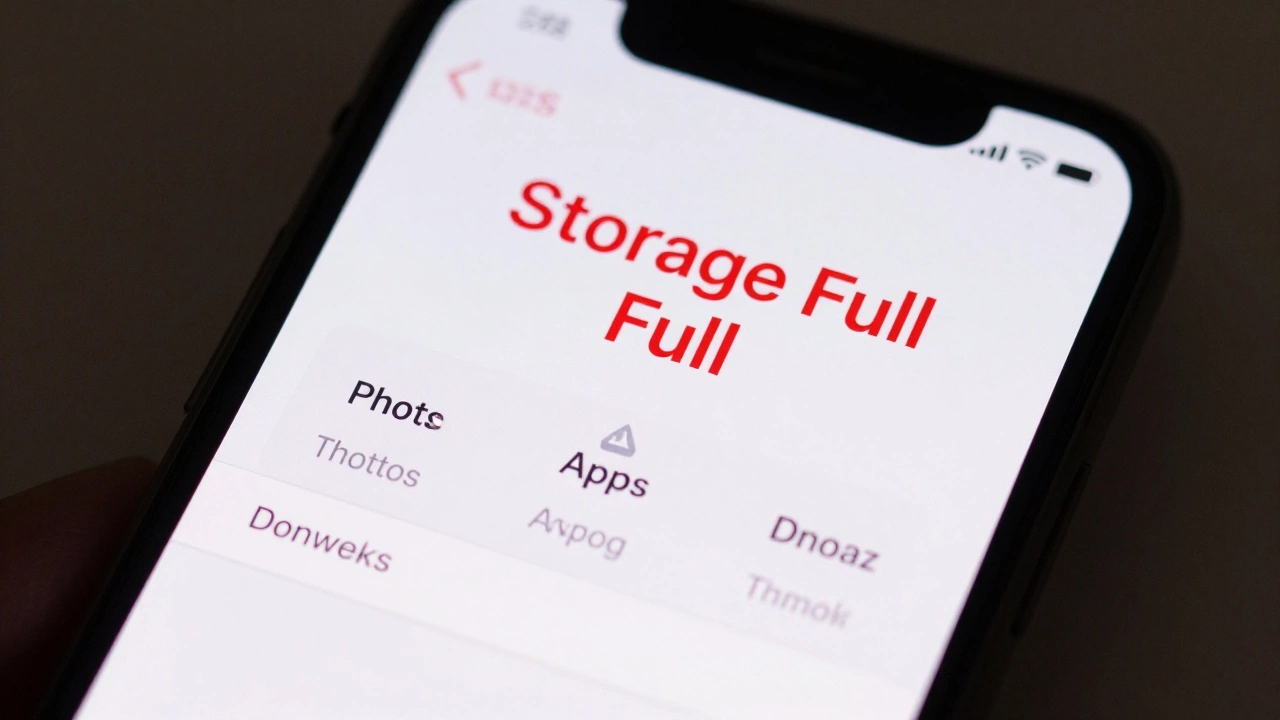
Ever open your phone and see that red warning: storage full? You can’t take photos, update apps, or even send a text. It’s frustrating-and totally avoidable. Most people think they need to buy a new phone when storage runs out. But the truth? You probably just need to clean up what’s already there.
Check What’s Taking Up Space
Before you start deleting anything, find out what’s eating your storage. On an iPhone, go to Settings > General > iPhone Storage. On Android, open Settings > Storage. Both will show you a breakdown: apps, photos, videos, downloads, and system files.Here’s what you’ll likely see:
- Photos and videos: Often the biggest culprit. Even if you back them up, they’re still stored locally.
- App cache: Temporary files apps use to load faster. They pile up silently.
- Messages with media: Group chats with GIFs, videos, and voice notes can fill up fast.
- Downloaded files: PDFs, music, APKs, and documents you forgot you saved.
- Old app updates: Your phone keeps old versions of apps after updates.
You don’t need to guess. The tools show you exact numbers. One user in Oxford cleared 12 GB just by deleting old video messages from a group chat that hadn’t been active in two years.
Delete Unused Apps (Even the Ones You Think You Might Need)
You don’t need every app you’ve ever downloaded. Most people use 10-15 apps daily. The rest? They’re just sitting there, taking up space.Go through your home screen and app library. Ask yourself: When was the last time I opened this? If it’s been over six months, uninstall it. Even if you think you’ll use it someday, you probably won’t.
Some apps are sneaky. Weather apps, fitness trackers, and game apps often store huge cache files. Uninstalling them removes not just the app, but all its hidden data.
On iPhone, swipe left on an app icon and tap Delete App. On Android, long-press the app, tap Uninstall, or go to Settings > Apps to manage them.
Clear App Cache and Data
Apps don’t just store what you put in-they build up temporary files to make things load faster. That’s cache. And it grows.On Android, go to Settings > Apps > [App Name] > Storage. Tap Clear Cache. Do this for your top 5 most-used apps: browser, social media, streaming apps. You’ll get back 1-5 GB easily.
On iPhone, you can’t clear cache manually for most apps. But you can offload them. Go to Settings > General > iPhone Storage, tap an app, then select Offload App. It keeps your data but deletes the app. Reinstalling it takes seconds.
Don’t tap Clear Data unless you’re okay losing login info, saved settings, or drafts. That’s a nuclear option.
Manage Your Photos and Videos
Photos and videos are the #1 reason phones fill up. A single 4K video can take up 500 MB. A year’s worth of photos? Easily 50 GB.Here’s what to do:
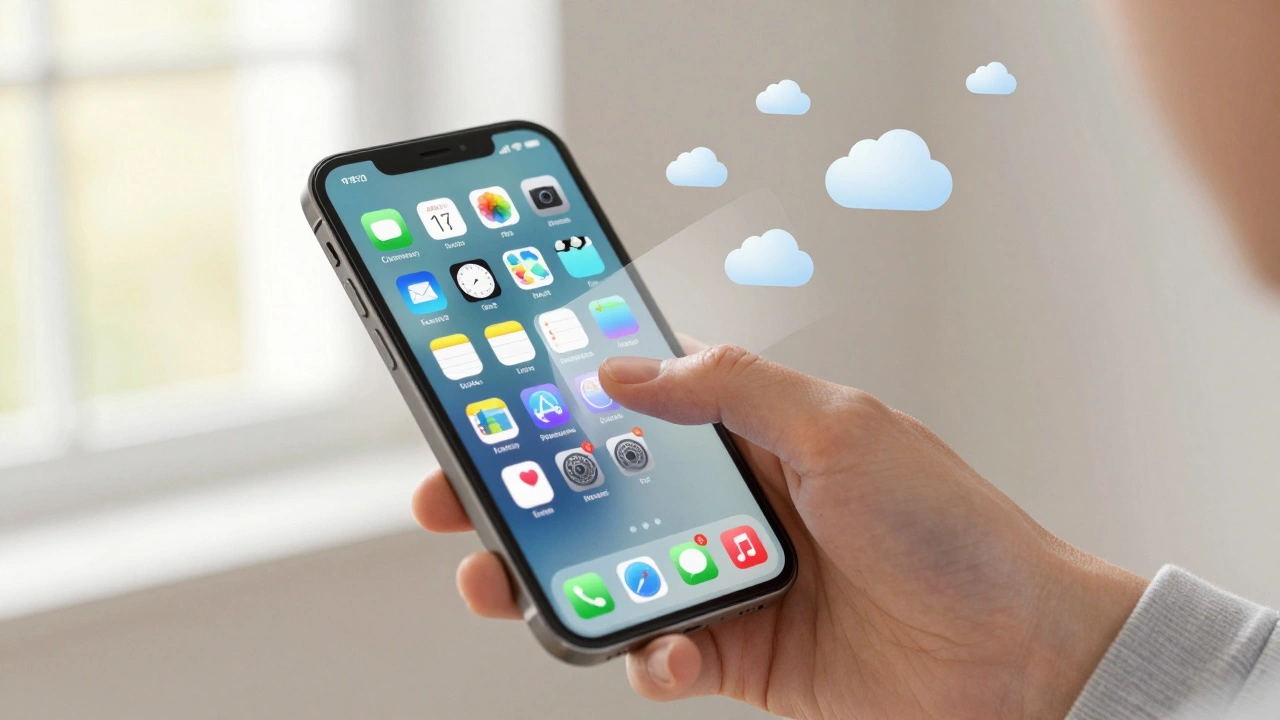
- Back up to the cloud: Use iCloud (iPhone) or Google Photos (Android). Turn on Auto-Upload so new photos go straight to the cloud.
- Delete duplicates: Use your phone’s built-in tool. iPhone has Recently Deleted. Android has Google Photos > Library > Trash.
- Remove blurry or low-quality shots: Use apps like Google Photos or Apple Photos to find similar frames and pick the best one.
- Export and delete long videos: Save your 10-minute vlog to your computer, then delete it from your phone.
One user cleared 30 GB by deleting 1,200 screenshots they’d taken over two years. They didn’t even remember most of them.
Clear Your Downloads Folder
People forget about downloads. PDFs from work, music files from a friend, APKs you downloaded to install an app manually-they all pile up.On Android, open the Files app and go to Downloads. Delete anything older than 30 days. If you’re unsure, move it to a folder labeled “To Check” and revisit it in a week.
On iPhone, open the Files app and check On My iPhone > Downloads. Same rule: if you haven’t opened it in months, delete it.
Pro tip: Use a cloud folder like Dropbox or Google Drive to store files you need, not your phone’s local storage.
Use Storage-Saving Features
Both iOS and Android have built-in tools to help you clean up automatically.iPhone: Go to Settings > Photos and turn on Optimize iPhone Storage. It keeps low-res versions of photos on your phone and stores full-quality ones in iCloud. You won’t notice the difference.
Android: Go to Settings > Storage > Free up space. Google will scan your phone and suggest files to delete-old downloads, unused apps, duplicate photos. Tap Free Up and let it do the work.
Also, enable Auto-delete old messages in your messaging app. Set it to 30 or 90 days. Text threads with media are storage landmines.
Don’t Overload Your Cloud Backup
You might think, “I’ll just back everything up and delete it.” But cloud storage isn’t infinite. iCloud gives you 5 GB free. Google Photos used to offer unlimited free storage-but now it counts toward your Google One limit.So don’t just back up blindly. Be selective. Upload only your best photos. Delete blurry selfies, screenshots of memes, and screenshots of texts you already saved elsewhere.
And never rely on cloud backup as your only copy. Use a computer or external drive for long-term archives.
What Not to Do
Avoid these common mistakes:- Don’t install “cleaner” apps. Apps like CCleaner or Phone Master don’t work better than your phone’s built-in tools. They often show fake results or push ads.
- Don’t delete system files. If you see something labeled “Android System” or “iOS Data,” leave it alone. You could break your phone.
- Don’t delete app data without backing up. Losing your game progress or login info isn’t worth a few GB.
Your phone already has everything you need. You don’t need third-party tools. Just use what’s built in.
Set Up a Monthly Cleanup Routine
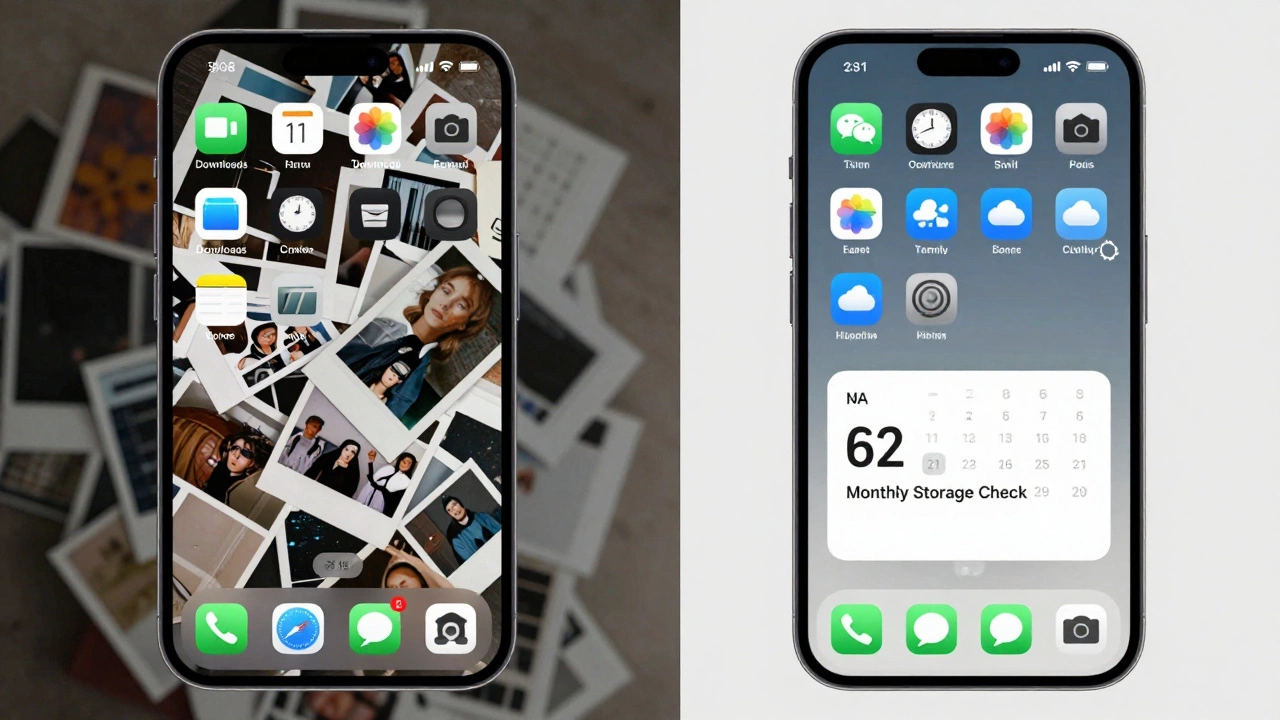
Prevention beats cleanup. Set a reminder on your calendar: every first Sunday of the month, spend 10 minutes cleaning your storage.Here’s your checklist:
- Review your photo library for duplicates and blurry shots.
- Check your downloads folder.
- Uninstall apps you haven’t opened in 90 days.
- Clear cache for your top 3 apps (browser, social media, music).
- Check your message history and enable auto-delete.
After three months, you’ll be surprised how much space you’ve saved-without buying anything new.
Why is my phone still full after I deleted apps?
Deleting an app removes the app itself, but not always its cache or data. On Android, go to Settings > Storage and tap "Free up space" to find leftover files. On iPhone, check "iPhone Storage" in Settings-it shows app storage separately from the app list. Sometimes, app data sticks around even after uninstalling.
Can I use an SD card to free up space?
Only if you have an Android phone with a microSD slot. iPhones don’t support SD cards. On Android, you can move some photos, videos, and music to the card-but most apps and system files still live on internal storage. It helps, but it’s not a full solution.
Does turning off iCloud or Google Photos free up space?
Turning off auto-upload doesn’t delete files already on your phone. You need to manually delete them. If you turn off iCloud Photo Library on iPhone, your photos stay on the device until you delete them. To free space, go into your photo app and delete the originals after confirming they’re backed up.
How often should I clean my phone’s storage?
Every 30 days. That’s enough to prevent buildup without being overwhelming. If you take a lot of photos or download files often, do it monthly. If you’re light on usage, every two months works. The key is consistency-not waiting until your phone freezes.
Is it safe to delete system cache files?
Yes, but only through your phone’s built-in tools. On Android, use "Free up space" or clear cache via Settings > Apps. Never use third-party cleaners to delete system files. They often misidentify files and can cause instability. Your phone’s own storage manager knows what’s safe to remove.